 Productivity
iOS and macOS
TaskCard: Visual Day Planner
TaskCard is a visual schedule. Each task is a color card on a clock face or a time grid, with a reminder or alarm the moment it starts, so you see the day instead of reading a list.
On the iPhone
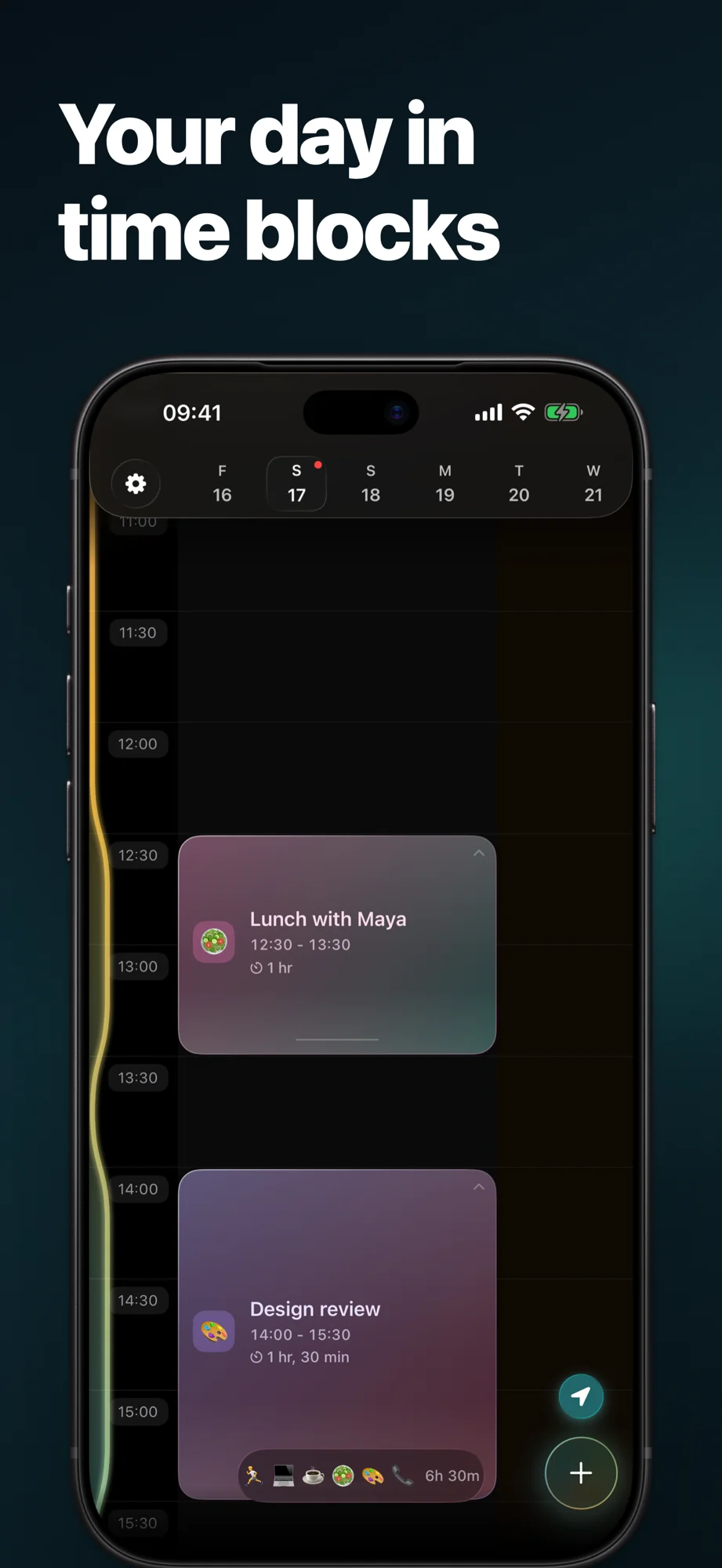
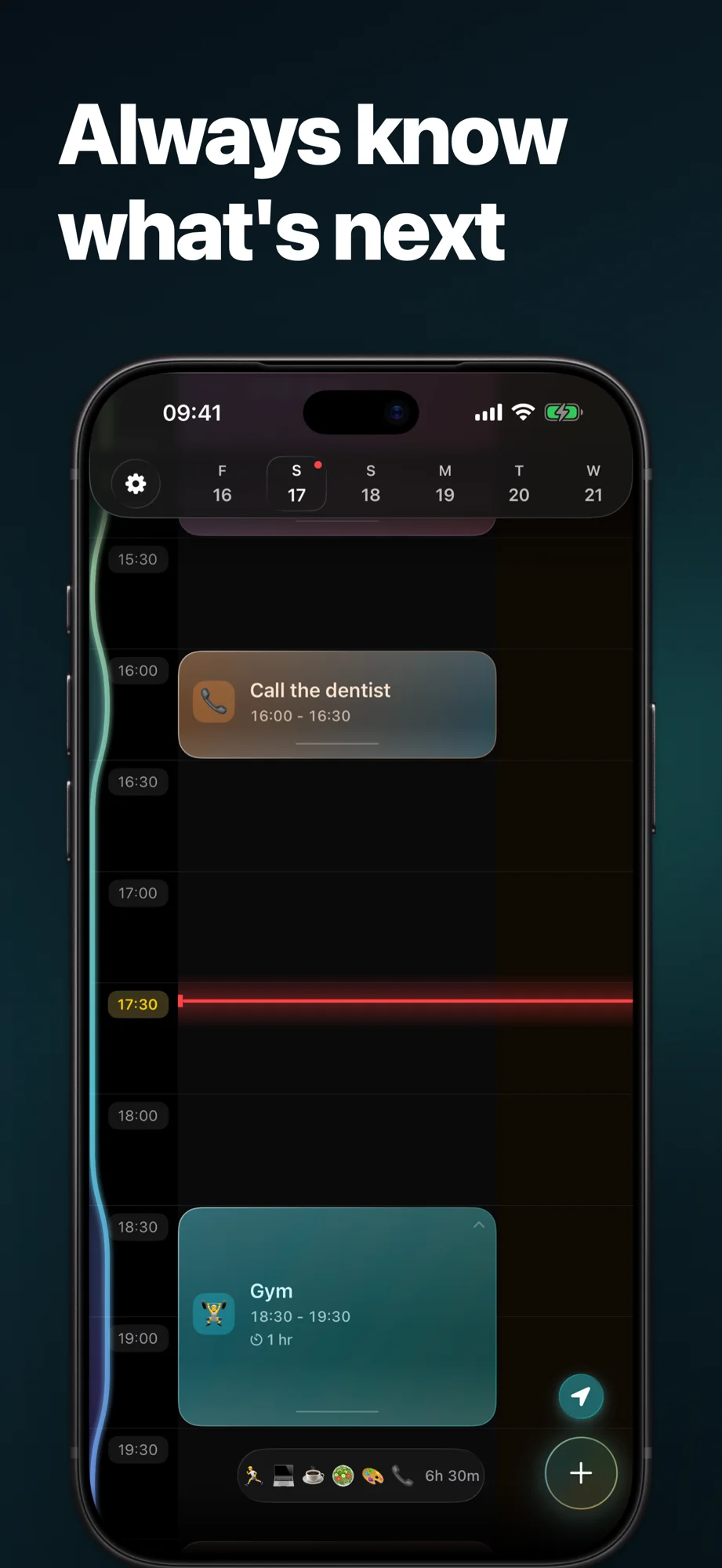
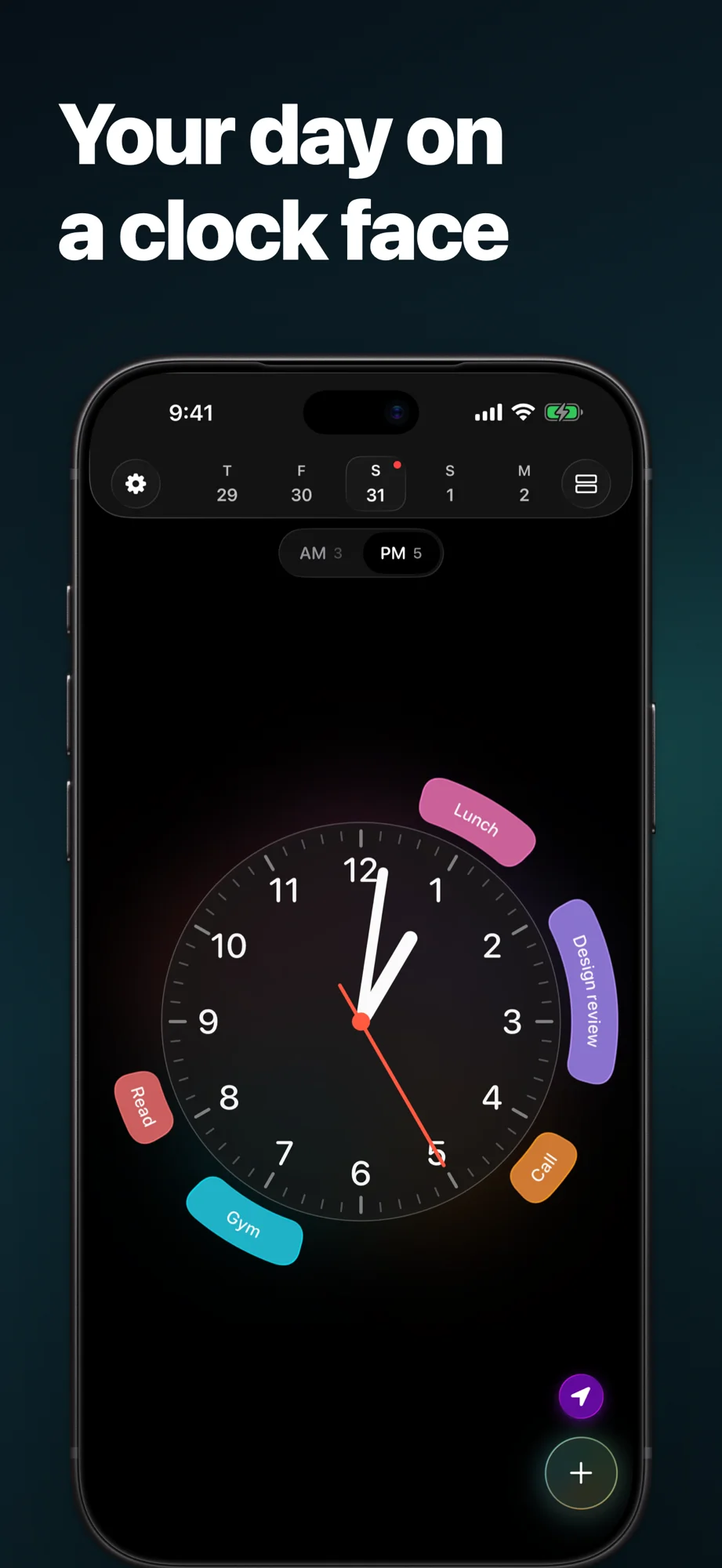
Screens from the current version on the App Store.
What it does
- Tasks as color cards on a 24-hour time grid, with a line at the current time
- Drag a card to a new hour, or pull its edge to change its length
- The day as a clock face, the morning or the afternoon ringed by its cards
- A full-screen clock on iPhone and iPad that can be locked, so a child can follow the day
- The day's timed Calendar events added as cards
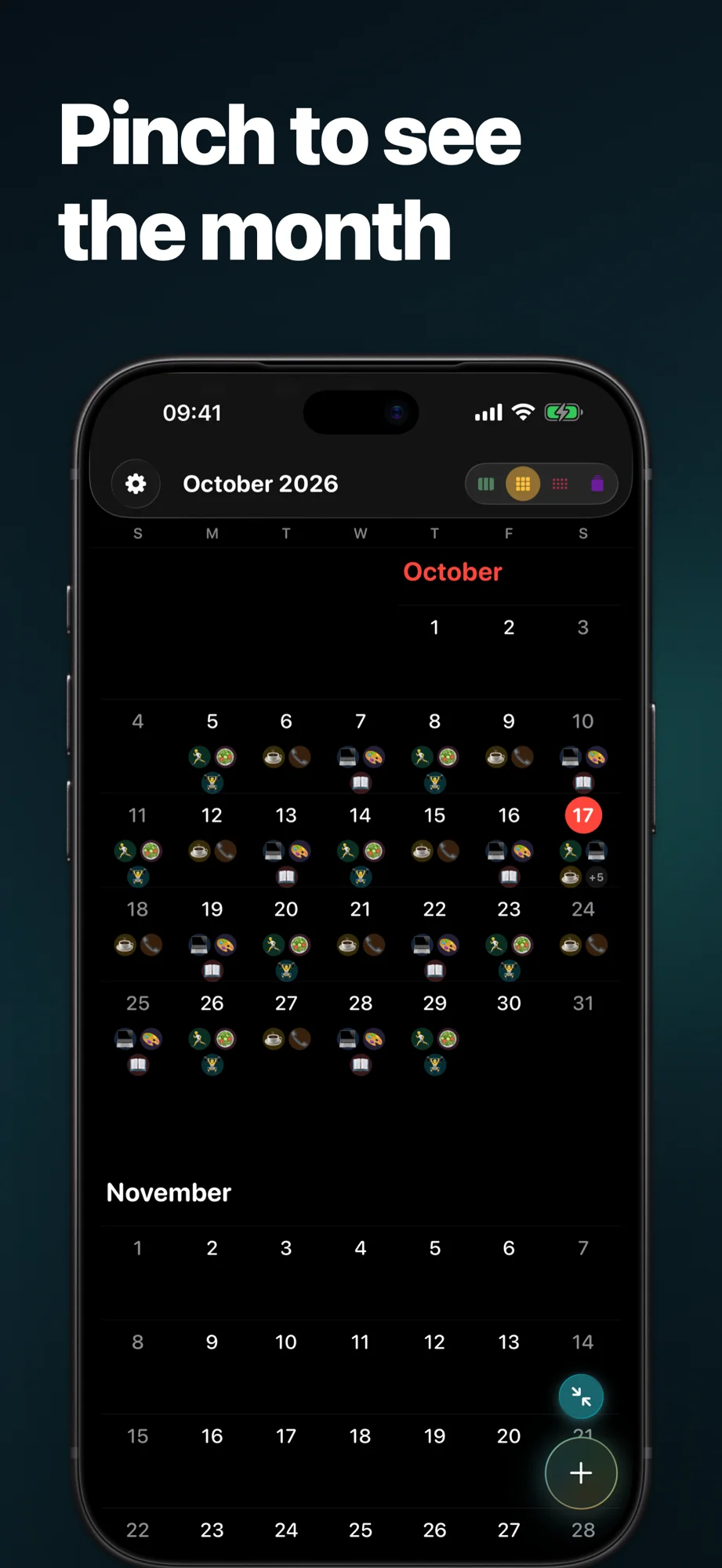
- Pinch out to the week, the month and the year, and back in to the day
- A reminder when a block starts and when time is up, plus an optional alarm
- Repeats, priorities, and colors, fonts, patterns, icons and emoji for every card
- Free for up to 3 cards a day with iCloud sync; Pro adds unlimited cards, widgets and the Live Activity
Plan by time, not by list
Add a task with a start time and a duration and it becomes a block on a 24-hour grid. The current time line is always visible, so you can see what is now and what is next at a glance.
Drag to reschedule
Plans change. Drag a card to a new hour, pull its edge to make it longer or shorter, and the rest of the day stays readable. Tasks that run past midnight stay visible on both days.
The day as a clock face
Show the day as a clock face ringed by its cards, morning and afternoon one half at a time. It reads at a glance: what is happening now and how much time is left.
A clock a child can follow
On iPhone and iPad, touch and hold the clock face to open it full screen, or let it open by itself after 1 to 15 idle minutes. Turn on Lock the screensaver in Settings, and closing it takes a two-second hold.
Add your calendar
The Calendar tab adds the day's timed events as cards, so meetings and appointments do not have to be typed again. All-day events are not added.
See the week, month and year
Pinch the grid to zoom out to a week, then a month, then a year, and pinch back in to the day. Every level is anchored on the day under your fingers, so you never lose your place.
Make the cards yours
Pick colors, gradients, fonts, patterns, icons and emoji for every card. Start from a preset library with ready-made tasks for work, study, fitness, home and daily routines.
Reminders and alarms
Get a notification when a block starts or when time is up, plus an optional alarm for the blocks you cannot miss. With TaskCard Pro, a Live Activity keeps the countdown on your Lock Screen and Dynamic Island.
Repeat and prioritize
Repeat daily, on weekdays, weekly, or on your own pattern. Set a priority from low to urgent and spot what matters by color.
Widgets and sync
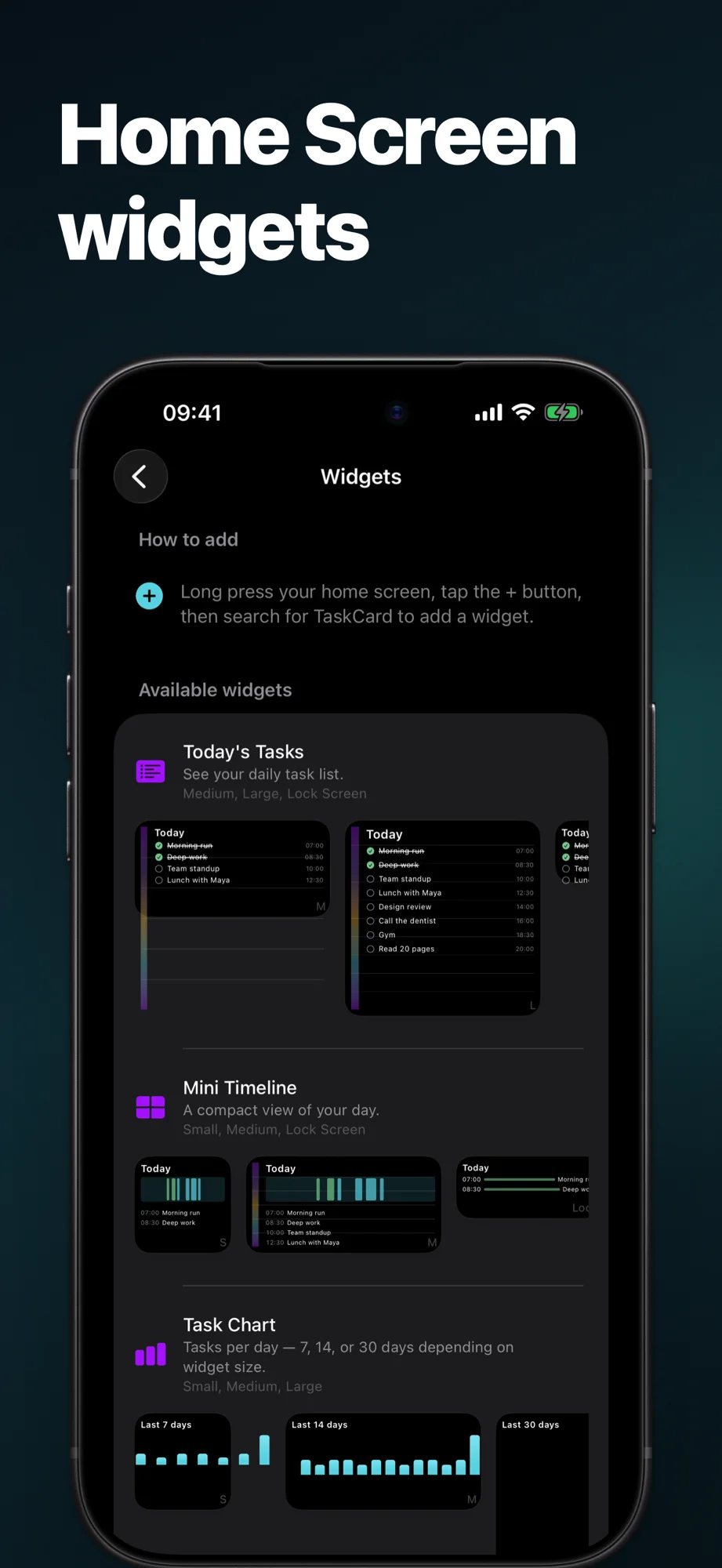
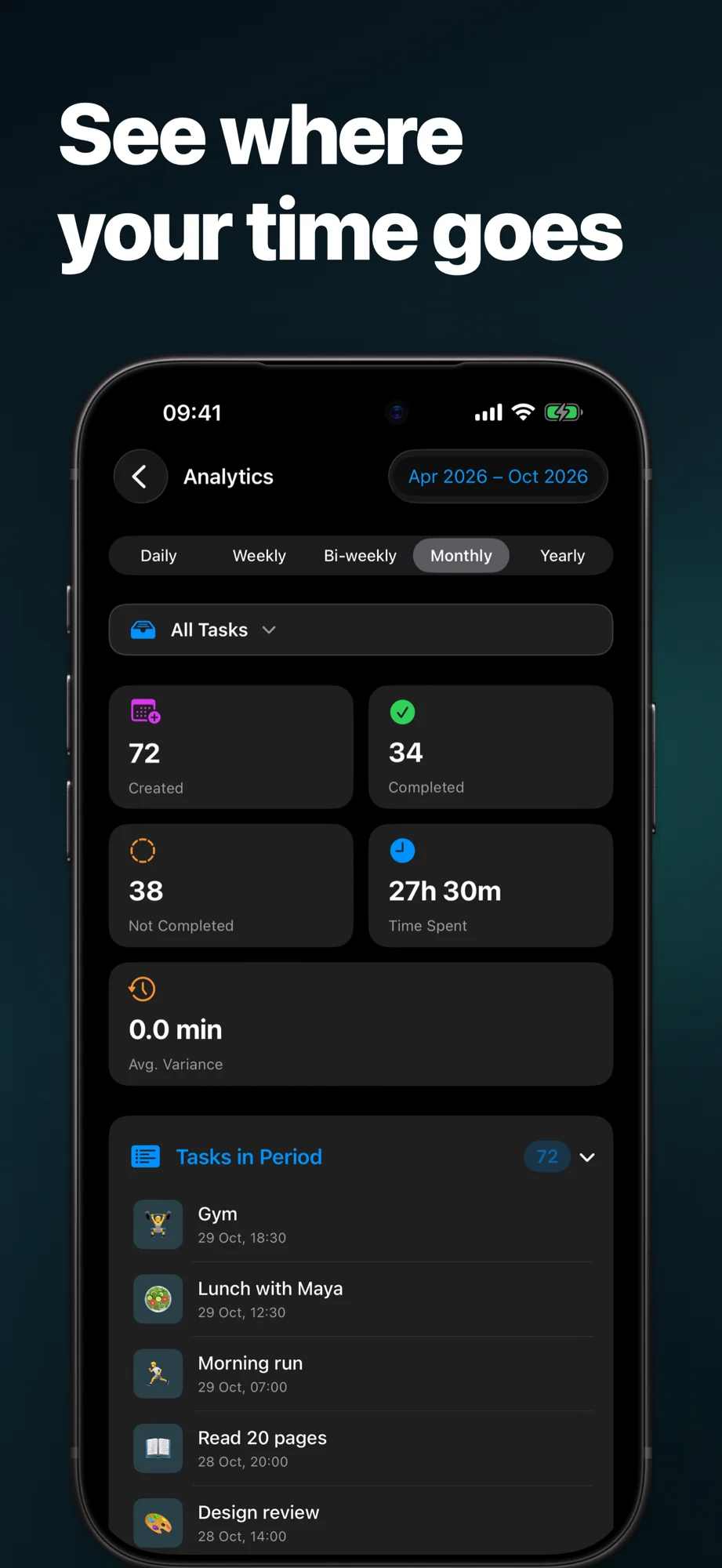
Put today's schedule on your Home Screen and Lock Screen with TaskCard Pro. Your plan syncs across iPhone and iPad over iCloud, and analytics show how much of each day you actually finish.
Built to stay out of the way
One main screen, no setup, no clutter. Create, complete, move, or delete from the same view.
Who uses it: kids following a daily routine, people with ADHD or autism, classrooms and therapists, students planning study sessions, and anyone protecting deep work with time blocks.
Free and pro
TaskCard is free to use with up to 3 cards a day, including reminders, alarms, iCloud sync and analytics. TaskCard Pro adds unlimited cards every day, Home Screen and Lock Screen widgets, and the Live Activity countdown.
For schools and teams
TaskCard can be distributed to many iPhones, iPads and Macs through Apple School Manager and Apple Business Manager. On devices where in-app purchases are turned off, such as school iPads, it says so instead of showing a purchase button, and the free 3 cards a day stay available.
TaskCard Pro is available as a monthly or yearly auto-renewing subscription, or as a one-time lifetime purchase. Eligible new subscribers may get a free trial; its length is shown before you subscribe. Payment is charged to your Apple Account at confirmation of purchase. Subscriptions renew automatically unless cancelled at least 24 hours before the end of the current period, and can be managed or cancelled in your App Store account settings.
Free in your browser
No install needed to try the idea first.
Related apps
More from writing and study.

TaskCard on the App Store
Visual Schedule & ADHD Routine.